

On this page
- What is Claude Code, and why does it need commands?
- What will you learn in this guide?
- Where does Claude Code run?
- How should beginners work safely on real files?
- Which four slash commands should a beginner learn first?
- How do you manage the conversation?
- How do you control cost, speed, and context?
- How do you set up a project the right way?
- How do you review code and plan changes before they happen?
- A quick word on Git terms (for total beginners)
- How do you run agents and automations?
- Which commands connect external tools?
- Which commands make daily work smoother?
- Where should a beginner actually start?
- Questions, answered
Claude Code slash commands are short commands that start with a / and act as your control panel for Claude Code — the version of Claude that works directly inside the files on your computer. With them you manage the conversation, choose a model, watch what it costs, set permissions, ask for a plan before anything changes, review code, run agents, and connect outside tools. In plain terms: they're the layer that turns Claude Code from a powerful-but-risky tool into an organized, controlled one.
What is Claude Code, and why does it need commands?
Anyone who starts working with Claude Code discovers something quickly: this is not just another AI chat. It's a working tool that goes straight into the folders on your computer — it reads your files, edits them, runs commands, and connects to other tools. That power is exactly why you want control. When an assistant can change real files, you don't want to just hope it does the right thing; you want to steer it.
That's what slash commands are for. Each one is a saved shortcut that tells Claude Code to do a specific thing, so you don't have to explain it in a full sentence. Instead of writing a paragraph, you type a short command and the tool knows exactly what to do.
What will you learn in this guide?
- Which slash commands exist, what each one does, and when to use it
- The four starter commands every beginner should learn first
- How to work safely on real files without breaking anything
- How to control the cost, the speed, and how much the AI remembers
- How to run agents, security reviews, and advanced automations
- Which commands need a paid plan, a cloud environment, or extra tools
Where does Claude Code run?
Here's a point that confuses a lot of beginners: Claude Code is not a separate program you install on its own. It shows up in a few places, and the same slash commands work identically in all of them.
- In the Claude desktop app — the simplest place to start. You work with Claude as usual, right in the app, with no terminal at all.
- In the terminal — a text window where you type commands to your computer instead of clicking buttons. A good fit if you're already comfortable working that way.
- In the browser and code editor (IDE) — for people who already work there.
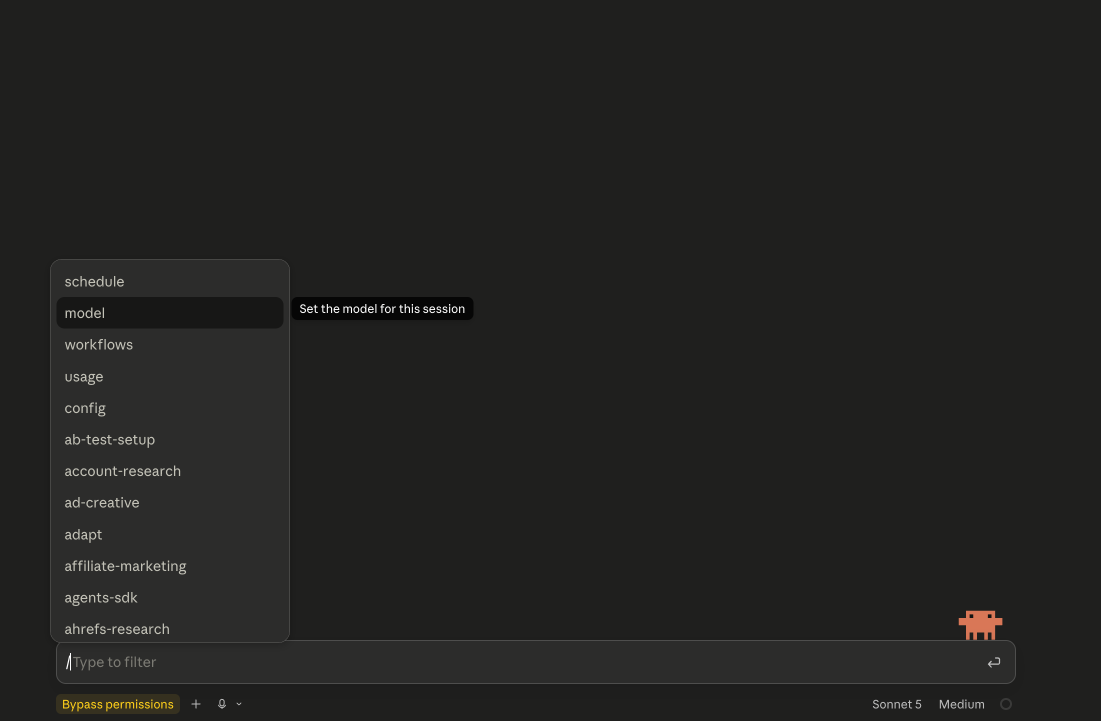
In every one of these places, you type slash commands the same way: at the start of the message, with a /. Type / on its own and Claude Code shows you the full list of what's available in your environment.
How should beginners work safely on real files?
Because the tool can act on real files, it's worth working in an orderly way from day one. A few simple habits keep you safe:
- Work in a dedicated project folder — not in folders that hold sensitive information.
- Make sure you have a backup or version control (Git) before any big change.
- Ask the tool for a plan before every significant change (that's what /plan is for).
- Don't give access to sensitive files unless there's a real need.
The rule of thumb: the more ability you give the tool, the more carefully you should manage its permissions and its context. That's exactly why slash commands exist.
Which four slash commands should a beginner learn first?
If the full list feels like a lot, don't panic — nobody uses every command. Start with these four. Together they let you explain your project, plan before changing anything, see what changed, and stay in control of what the tool is allowed to do.
- /init — creates a file called CLAUDE.md where you explain how your project is built, what tests to run, and what must not be changed without approval. One of the most important commands at the very start.
- /plan — puts the tool into planning mode. Before any meaningful change, this should almost be your default: plan first, act second.
- /diff — shows exactly what changed compared to your existing code. A must before you save or approve a big change.
- /permissions — manages what the tool is allowed to read, edit, or run, and what needs your approval. One of the most important commands before working on real code.
How do you manage the conversation?
These are the most basic commands. They help you open, close, save, and return to conversations without losing your place in the middle of a task.
- /help — shows help and the list of commands available to you. The safest place to start and see what exists in your environment.
- /clear — opens a fresh conversation with clean context, without deleting your earlier chats. Handy when you move from one task to another.
- /resume — returns you to an earlier conversation by name, ID, or a picker. Also available as /continue.
- /rewind — rolls the conversation or the code back to an earlier point. Especially useful after a change that didn't work out.
- /rename — renames the current session so it's easy to find later.
- /export and /copy — export the whole conversation to a file or clipboard, or copy the last answer or a specific code block.
- /recap — creates a short summary of the session. A time-saver when you're handing work off to a teammate.
How do you control cost, speed, and context?
Here you steer three things that directly affect quality, speed, and price: which model is working, how much it costs, and how much room is left in the conversation's memory.
- /model — chooses or switches the active model. Worth setting before complex tasks like an architecture change or a deep bug hunt.
- /effort — controls how hard the model works, from low up to maximum.
- /fast — turns fast mode on or off: same model, quicker output.
- /usage and /cost — show your session cost, plan limits, and usage statistics.
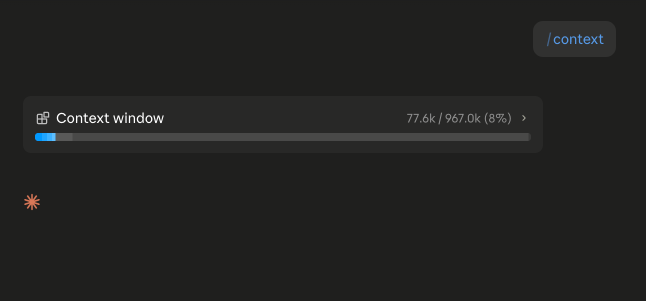
- /context — shows how much of the context window is used, and warns you before it fills up.
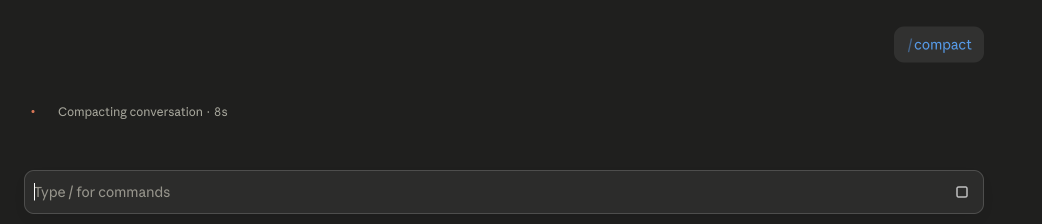
- /compact — summarizes the conversation to free up room so you can keep going without starting over.
- /btw — for a quick side question mid-task, without it cluttering the main history.
Think of the context window as the tool's short-term memory. Before starting a heavy task, glance at /context. If it's nearly full, run /compact to free up space.
How do you set up a project the right way?
Before you let the tool write code, you prepare the ground: explain the project, define what it may touch, and save instructions that repeat.
- /init — creates the CLAUDE.md file that explains how your project is built, which tests to run, and what not to change without approval.
- /memory — edit and manage the project's memory, turn automatic memory on or off, and see what's saved. This is where repeating instructions live.
- /add-dir — adds another folder the tool may access in the current session. Use with care: more access means more ability, but also more risk.
- /config — opens settings: interface preferences, model, and more.
- /permissions — manages the permission rules: what the tool can read, edit, or run, and what needs approval.
How do you review code and plan changes before they happen?
This is the group that makes working on code orderly: plan first, then act, and always check what changed before you approve it.
- /plan — puts the tool into planning mode. Before a meaningful change, make this your default.
- /diff — shows the changes made compared to the existing code. Essential before you save and before approving more of a big change.
- /review and /code-review — review changes from the current session; code-review focuses on finding bugs and mistakes in the code.
- /security-review — focuses on security risks like permission problems, data exposure, or points of attack.
- /simplify — reviews recently changed files, runs several review agents in parallel, merges the findings, and fixes issues of duplication, quality, and efficiency.
- /autofix-pr and /ultrareview — powerful cloud reviews: one follows a pull request and auto-fixes issues when tests fail; the other runs a deeper code review in the cloud.
A quick word on Git terms (for total beginners)
- Branch — a separate line of development inside your project. Instead of changing the main code directly, you open a branch, work on it apart, and merge it back when it's ready.
- Pull request (PR) — the step before merging. You ask for your changes to go into the main code, and teammates review, comment, and approve. A quality gate that keeps problematic code out.
- Worktree — a physical copy of the project in a separate folder, so you can work on several branches at once without switching back and forth.
How do you run agents and automations?
Here the tool turns from a single worker into a team. You can launch specialized agents, run tasks in the background and in parallel, and set up processes that repeat.
- /agents — shows and manages dedicated agents. Each one can specialize in a task, like code review, testing, or research inside your project.
- /background and /tasks — send the session to keep running in the background and free up the terminal, then see the tasks running behind the scenes.
- /batch — breaks a big job into units of work, runs them in parallel, and shows a plan first. It uses separate worktrees and needs a Git repository.
- /goal — set a target condition the tool tries to reach across several rounds.
- /loop — runs a prompt again and again, for example to check whether a process finished or a test went back to passing.
- /schedule — creates recurring tasks that run on cloud infrastructure. Available in supported environments.
Which commands connect external tools?
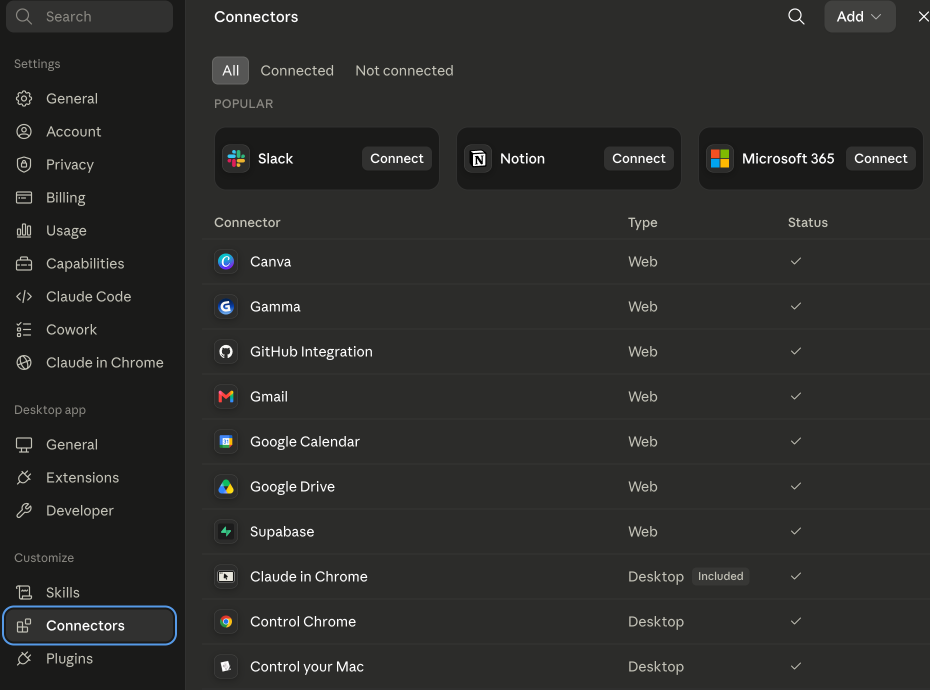
These extend the tool: connecting to outside services, installing add-ons, and building commands of your own.
- /skills — shows the available Skills and manages their visibility. Skills are repeatable workflows you build and trigger like a command.
- /plugin and /reload-plugins — manage add-ons, discover and install new ones, and reload them without starting a new session.
- /mcp — manages Model Context Protocol connections: links to external tools and data sources. MCP is an open standard that connects the tool to systems like Google Drive, Jira, or Slack.
- /hooks — shows Hooks: automatic actions triggered around events like editing a file or running a tool.
- /ide, /web-setup, /remote-control, /teleport — commands for working across the terminal, browser, and cloud. For example, /remote-control continues a session from another device, and /teleport pulls a session from the browser into the terminal.
Which commands make daily work smoother?
These look minor, but they cut the noise, reduce needless approval prompts, and help when something breaks.
- /insights — a report that analyzes how you work: where you spend time, which patterns repeat, and where the friction is. Useful after a few weeks.
- /fewer-permission-prompts — cuts down repeated approval requests by spotting common read-only actions and allow-listing them. Also available as /less-permission-prompts.
- /focus — a focused view showing only the essentials: your last prompt, a summary of actions, and the final answer.
- /statusline and /status — configure the status line, and see version, model, account, and connection info.
- /doctor and /debug — diagnose installation and setup problems, and investigate runtime issues. Your first step when something isn't working.
Where should a beginner actually start?
This guide doesn't cover every command that exists — only the most central and useful ones. To see the full list in your environment, type / or use /help. And if it looks like a lot, relax: nobody uses all of them. Here's a sane order to start in.
- First, four base commands: /init to explain the project, /plan to plan before changing, /diff to see what changed, and /permissions to control the boundaries.
- Then a second layer: /context and /compact to manage memory, /usage to track cost, and /review with /security-review to check the code.
- Only after that: agents, Skills, MCP connections, and automations.
Start with the four base commands only. Once they become second nature, add the next layer. That way you never get overwhelmed.

Want to learn Claude Code the hands-on way?
Inside the club there's a full Claude Code course — step-by-step video lessons with me, plus a support group so you're never stuck. We start from the basics and build up to agents and automations.
Questions, answered
What are slash commands in Claude Code?
Slash commands are short commands that start with a / and act as your control panel for Claude Code. They let you manage the conversation, pick a model, set permissions, plan before a change, review code, run agents, and connect external tools. Claude Code only reads them as commands when the / is at the start of your message.
Which slash commands should a beginner learn first?
Start with four: /init to explain your project to the tool, /plan to plan before any change, /diff to see exactly what changed, and /permissions to control what the tool is allowed to do. Once those feel natural, add /context, /compact, /usage, and /review.
Do I need to know how to code to use Claude Code?
You don't need to be a developer to start. Claude Code runs in the simple Claude desktop app as well as the terminal and code editors, and the same slash commands work everywhere. The safest way to begin is the desktop app with the four base commands.
Are all slash commands available to everyone?
No. Availability depends on your platform (app, terminal, or browser), your plan, and your work environment. Some commands need a paid plan or a cloud environment. Type / at any time to see the exact list available in your setup.
How do I see the full list of slash commands?
Type / on its own at the start of a message, or run /help. Claude Code will show every command available in your current environment, which may differ slightly from someone else's.
Is Claude Code safe to use on my real files?
Yes, if you work in an orderly way. Use a dedicated project folder, keep a backup or Git version control, ask for a plan before big changes with /plan, and control access with /permissions. The more ability you give the tool, the more carefully you should manage its permissions.
Reading is step one. Doing it is the club.
New skills and guides first, courses as they're released, and a community that answers when you get stuck. $29/month, cancel anytime.

AI changes every week. Stay current in 2 minutes.
Every Monday: what changed in ChatGPT, Claude and Gemini, why it matters, and one thing to try. Free.
Written by Ann Alalouf. Spotted something out of date? Tell us — we keep these current. Published Jul 6, 2026.