

On this page
- So what is Claude Cowork, really?
- What you can actually do with it
- Before you start: the quick checklist
- 1Download the Claude Desktop app
- 2Sign in and find the Cowork switch
- 3Give it its first real task
- The safety part: who's allowed to do what
- Connecting it to your email, calendar and apps
- Teaching Claude new skills
- The three ways Cowork works
- Tasks that run on their own
- Scheduled task vs. Routine — what's the difference?
- Building a dashboard that updates itself
- A few tips before you turn it loose
- Questions, answered
Okay, real talk. Most of us know Claude as a chat. You type something, it types back, you copy the answer somewhere, done. That's fine. But it's a bit like owning a car and only ever using it to listen to the radio.
Claude Cowork is the part where you actually drive. Instead of just answering, it sits on your computer, opens your files, reads your email, uses your browser, and does the whole task from start to finish — while you go make a coffee. Not a chatbot. An actual coworker.
This guide walks you through all of it, from the very first download to tasks that run on their own while you sleep. No tech background needed, and I'll show you every screen along the way. Let's get into it.
So what is Claude Cowork, really?
Think of regular Claude as a smart friend you text. Claude Cowork is that same friend, except now they're sitting at your desk with their hands on your keyboard. You give it a job — "go through this folder of invoices and build me a summary" — and it actually goes and does it. Opens the files, reads them, writes the summary, saves it. You just check the result.
It connects to the stuff you already use: your files and folders, Gmail, your calendar, your browser, and a whole list of apps like Slack, Notion and Google Drive. The short version: regular Claude knows things. Cowork does things.
What you can actually do with it
This isn't theory. Here's the kind of thing people hand it every day:
- Point it at a messy folder and get back a clean summary or a tidy spreadsheet.
- Have it read your inbox every morning and tell you what actually needs a reply.
- Ask it to plan your week from your calendar and your to-do list.
- Build a little report that rebuilds itself every Monday, automatically.
- Hand it a boring two-hour task, walk away, and come back to it finished.
Before you start: the quick checklist
- A paid Claude plan. Cowork only works on the paid ones — Pro ($20/mo), Max ($100/mo), Team or Enterprise. The free plan won't have it.
- A Mac or Windows computer. (There's a Linux version too, still in beta.)
- About 10 minutes and a coffee. Which is fitting, given what it's about to save you.
Download the Claude Desktop app
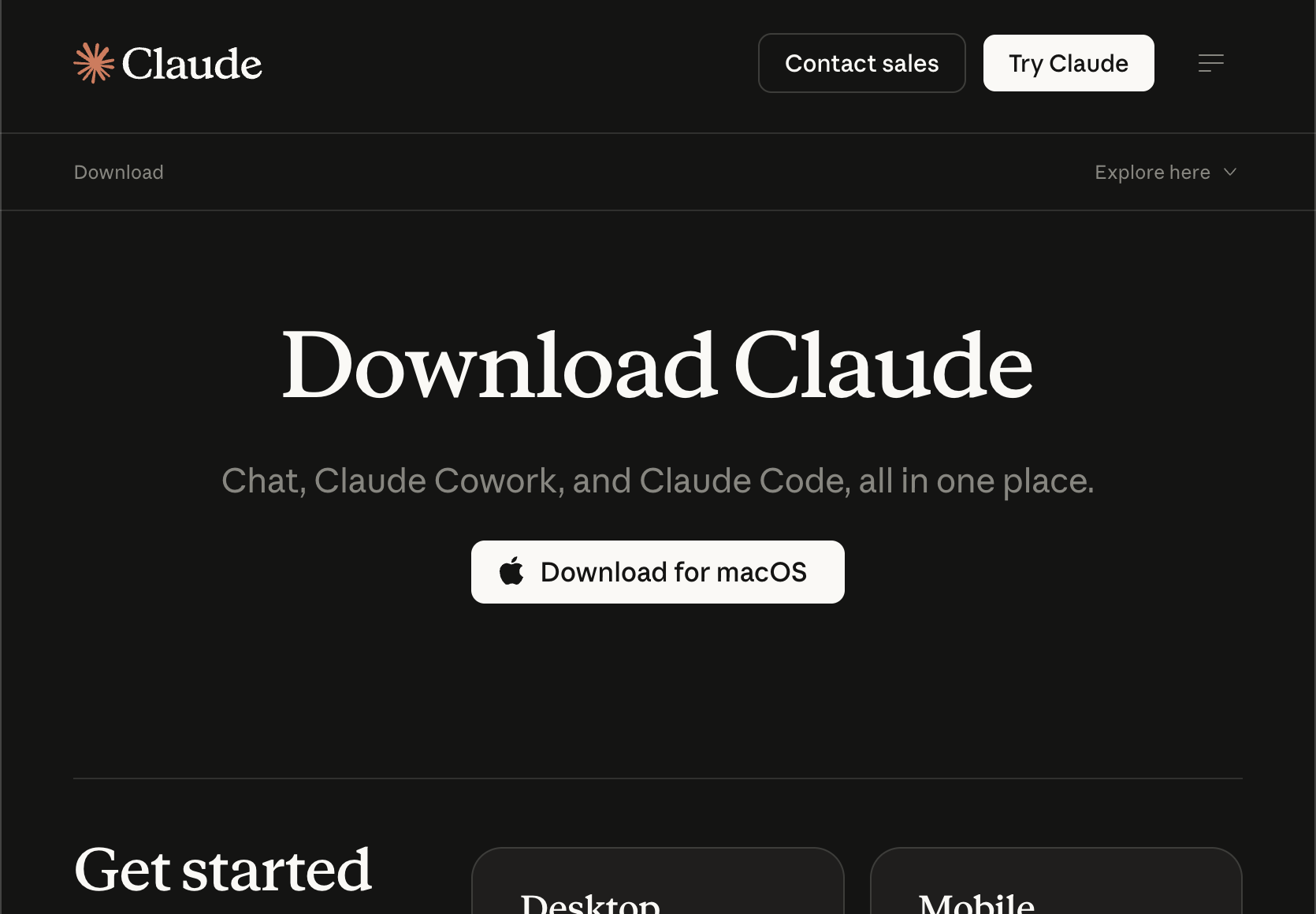
Here's the one thing that trips people up: Cowork lives inside the Claude Desktop app, not the website. So head to claude.com/download, grab the version for your computer, and install it like you would any other app.
Already have Claude Desktop? Great — just make sure it's fully updated. Cowork only shows up on the latest version.
Sign in and find the Cowork switch
Open the app and sign in with your Claude account (the paid one). Near the top you'll see a little mode switch that says Chat. Click it and choose Cowork.
That's honestly the whole magic moment. You just flipped Claude from a chatterbox into a doer.

Give it its first real task
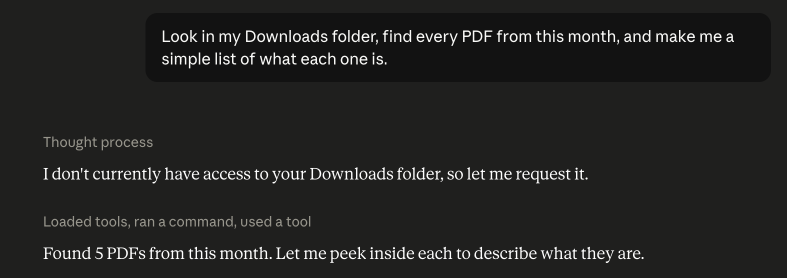
In Cowork you'll get a box asking what Claude should work on. Type a real job in plain English, and start small. Try something like:
Look in my Downloads folder, find every PDF from this month, and make me a simple list of what each one is.
Claude shows you its plan before it touches anything. Read it, and if it looks right, let it go. Then watch it work — opening files, thinking, doing. The first time, it genuinely feels like magic.
The safety part: who's allowed to do what
Fair question: if it can open my email and my files, what stops it from doing something dumb? You do. You're in control the whole time, through permissions.
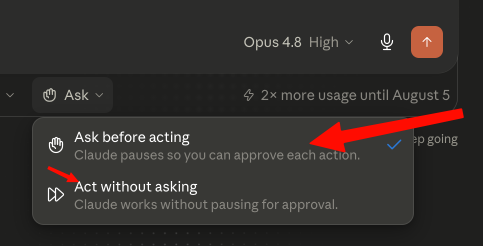
There are two modes, and you pick. Ask before acting means Claude checks with you before every single action — the right choice when you're new. Act without asking lets it move faster on stuff you already trust it with.
And there's one rule that never bends, in either mode: it always asks before permanently deleting anything. Even in the fast mode. So you're never one wrong click from losing a file.
Connecting it to your email, calendar and apps
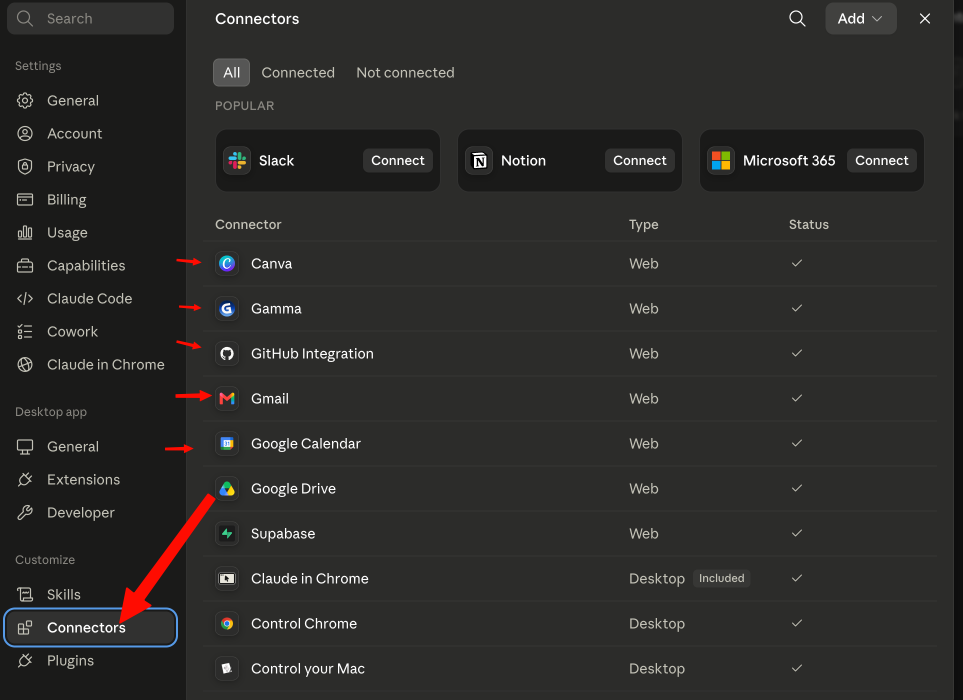
This is where it goes from neat to genuinely useful. Cowork can plug into the tools you already live in — Gmail, Google Calendar, Drive, Docs, Sheets, Slack, Notion, and plenty more.
To connect one, go to Settings, open Connectors, pick the app (say Gmail), and sign in the normal way you always do. Now Claude can read your inbox, draft a reply in your voice, dig up that one email from three weeks ago, or check your calendar and set up a meeting for you.
Every connection has its own permissions panel. Reading things is usually allowed automatically; anything that changes or sends is set to ask you first. You can tighten or loosen that for each app.
Teaching Claude new skills
Claude's already pretty capable out of the box, but you can hand it Skills — little add-ons that teach it to do specific things really well, like building a slide deck, formatting a document a certain way, or working with a particular tool.
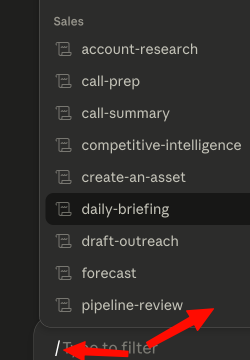
When you're writing a task, just type "/" and you'll see the Skills and plugins you can drop in, with a growing marketplace to pull from. Think of it like sending your coworker on a quick training course.
The three ways Cowork works
Once you're comfortable, it helps to know Cowork runs in three flavors. You'll use the first one most:
1. Standard tasks
You ask, it does it, one time. This is your everyday bread and butter.
2. Scheduled tasks
The same job, but on repeat — every morning, every Monday, whatever you set. More on this in a second, because it's the fun one.
3. Projects
A workspace that remembers. Your files, instructions and context all live together, so Claude picks up right where it left off instead of starting cold every time.
Tasks that run on their own
Here's the part that feels like actually having staff. You can set a task to run automatically on a schedule, and there are two ways to do it.
The quick way: while you're in any task, type /schedule and tell Claude how often to run it.
The full way: click Scheduled in the left sidebar, hit + New task, and fill in the name, the instructions, and how often it should run — hourly, daily, weekly, weekdays only, or only when you press go. Then Save.
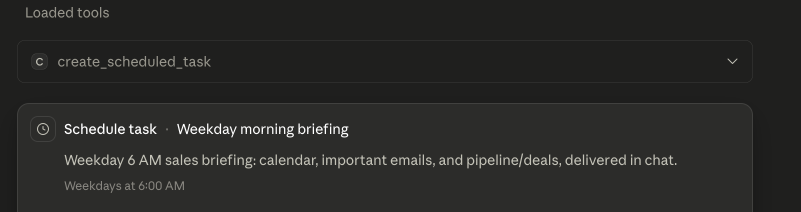
Every weekday at 8am, check my calendar and inbox and send me a two-line summary of what actually matters today.
Scheduled task vs. Routine — what's the difference?
You'll hear both words thrown around. Here's the simple version:
- A scheduled task runs on your computer. It's the easy one, and it's perfect when the job touches your own files. The only catch: your computer has to be on and the app open.
- A Routine (the cloud kind) runs on Claude's computers. It'll run even when your laptop is closed and zipped in your bag, because it's not using your machine at all. The trade-off: it works with your connected online stuff, not files sitting on your local drive.
Rule of thumb: needs your local files → scheduled task. Needs to run no matter what, even while you're offline → cloud routine.
Building a dashboard that updates itself
Now stack a couple of these ideas together and you get something genuinely cool — a report that keeps itself up to date without you.
Set up a scheduled task like: "Every Monday morning, pull this week's numbers from my Sheet, my Gmail and my calendar, and rebuild my 'Week Ahead' dashboard doc." From then on, every Monday you open that doc and it's already done. You didn't lift a finger.
A few tips before you turn it loose
- Start with read-only jobs. Let it summarize and organize for a while before you let it send or delete anything.
- Be specific, like you would with a new hire. "Summarize these three files into one page" beats "do something with these."
- Keep 'Ask before acting' on until you trust it. Then loosen up gradually.
- Give it real work, not toy examples. The first time it saves you an actual hour, the whole thing clicks.

This is where AI stops being a toy
The moment Cowork does a real task for you, something shifts — you stop asking "what can AI do?" and start asking "what should I hand it next?" If you want the guided version of that journey — building your own agents and automations, step by step, for people who aren't techy — that's exactly what we do inside the club.
Questions, answered
Is Claude Cowork free?
No — it's part of the paid plans (Pro, Max, Team and Enterprise), and it lives inside the Claude Desktop app. The free plan doesn't include it.
Do I need to know how to code?
Nope, and that's the whole point. Cowork is the power of the developer tool (Claude Code) without any of the code. You just talk to it in plain English.
Is it safe to let it into my email and files?
You stay in control the whole time. It asks before doing anything that changes or sends, and it always asks before deleting. Start it in "ask before acting" mode and only connect what you're comfortable with.
Will it run while my computer is off?
A normal scheduled task won't — your computer has to be awake and the app open. A cloud routine will, because it runs on Claude's servers instead of yours.
How is this different from regular Claude or ChatGPT?
Regular chat answers your question and hands you the instructions. Cowork actually does the task — it opens your files and apps and finishes the job itself, instead of leaving the doing to you.
Reading is step one. Doing it is the club.
New skills and guides first, courses as they're released, and a community that answers when you get stuck. $29/month, cancel anytime.

AI changes every week. Stay current in 2 minutes.
Every Monday: what changed in ChatGPT, Claude and Gemini, why it matters, and one thing to try. Free.
Written by Ann Alalouf. Spotted something out of date? Tell us — we keep these current. Published Jul 6, 2026.