

On this page
- What you'll be able to do once it's connected
- First, the one-sentence version of what we're building
- Before you start: a 2-minute checklist
- 1Check you have Node.js
- 2Add the NotebookLM connector to Claude Code
- 3Log in to NotebookLM — just once
- 4Point Claude at your notebook
- 5Ask Claude to actually use it
- Give Claude a memory that actually lasts
- Three ways people actually use this
- A few honest things to know
- Marketing ideas to steal with this combo
- Questions, answered
You probably have two AI tools you love that have never actually met. NotebookLM is brilliant at reading your documents — research papers, PDFs, meeting notes — and answering questions about them with citations you can trust. Claude Code is brilliant at getting things done on your computer. The catch? They live in separate tabs, and you are the one copy-pasting between them all day.
This guide fixes that. In about ten minutes, you'll connect the two so Claude can ask NotebookLM questions for you — reading your sources, pulling grounded answers, even kicking off an audio summary — all from a single conversation. No API keys to buy, and every command is copy-paste.
What you'll be able to do once it's connected
- Ask Claude a question and have it answer from your own documents, with citations — not from the open internet.
- Keep Claude fast and cheap: NotebookLM does the heavy reading, and only the short answer travels back.
- Add new sources, create notebooks, or generate an Audio Overview just by asking in plain English.
First, the one-sentence version of what we're building
MCP (Model Context Protocol) is simply a standard way to give an AI assistant new abilities — think of it as a power outlet that any tool can plug into. Here, we're plugging NotebookLM into Claude Code so Claude can use it like a built-in feature. You don't need to understand a line of it to follow along.
Before you start: a 2-minute checklist
- A free Google / NotebookLM account, with at least one notebook that has a source or two in it.
- Claude Code installed on your computer.
- Google Chrome installed (the connector uses it behind the scenes).
- Node.js 18 or newer — don't worry if you're not sure, we check this in Step 1.
Check you have Node.js
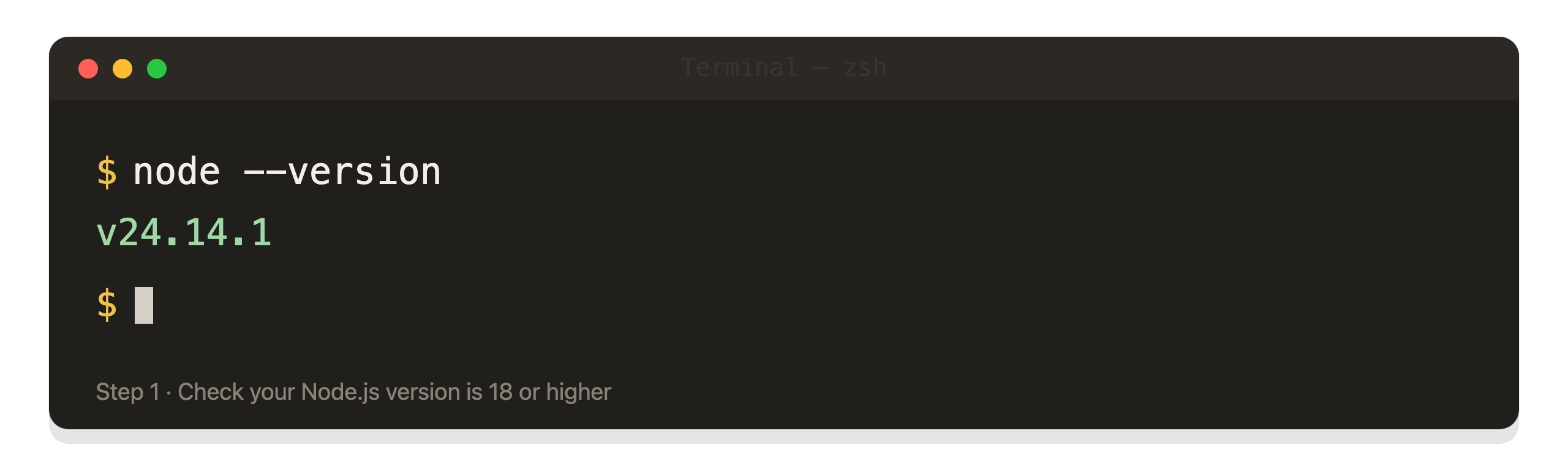
Open your terminal (on Mac, that's the Terminal app; on Windows, PowerShell) and paste this:
$ node --version
If you see a number like v18.0.0 or higher, you're all set — skip to Step 2. If it says "command not found," download the LTS version from nodejs.org, install it, and run the command again.
Add the NotebookLM connector to Claude Code
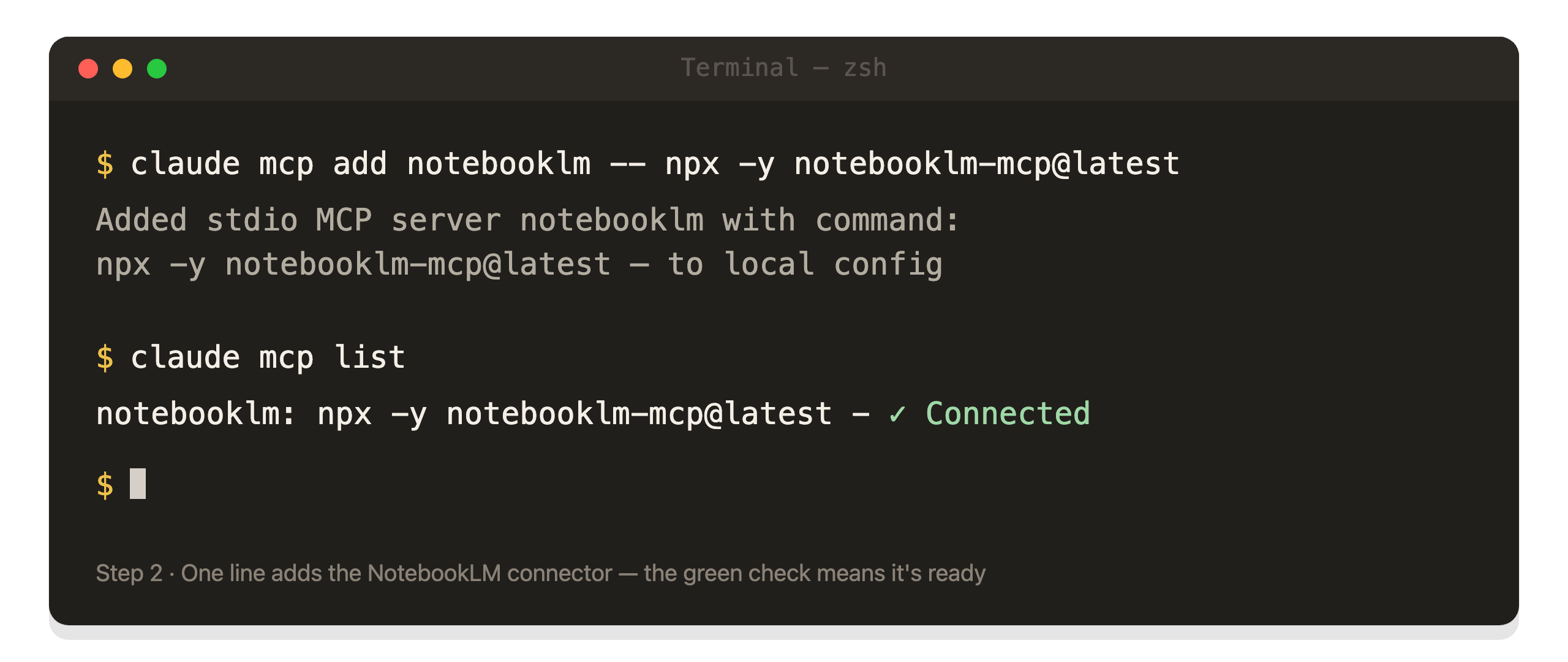
This is the one that does the magic — and it's a single line. Paste it into your terminal:
$ claude mcp add notebooklm -- npx -y notebooklm-mcp@latest
That tells Claude Code, "here's a new tool called notebooklm — go fetch it and keep it handy." It downloads automatically the first time. When it's done, you'll see the notebooklm server listed as connected.
Log in to NotebookLM — just once
Open Claude Code and type this in plain English:
Set up my NotebookLM login.
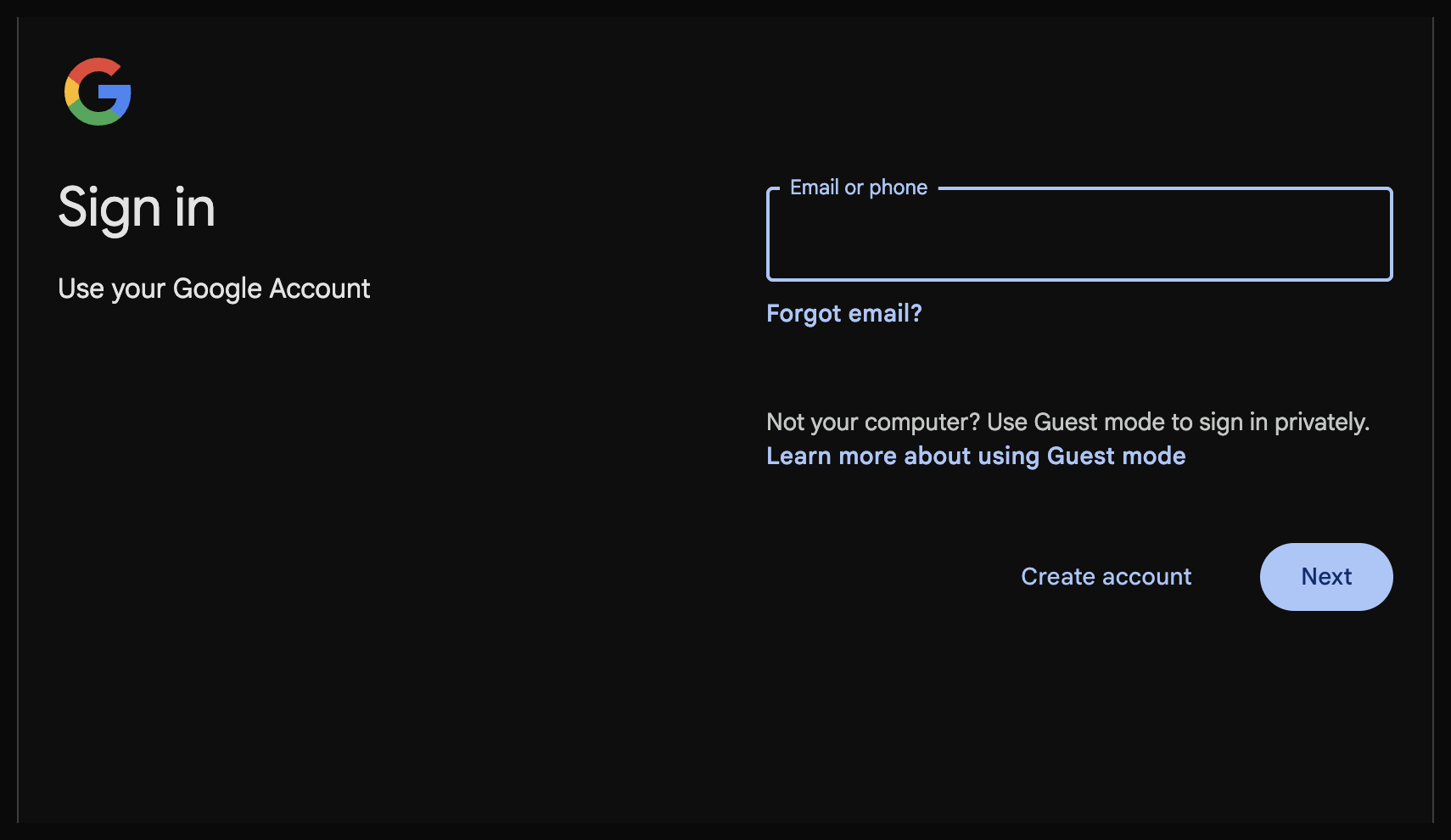
A Chrome window will pop open on the normal Google sign-in page. Log in the way you always do. That's it — the connection remembers you from now on, so you'll never have to do this again.
Point Claude at your notebook
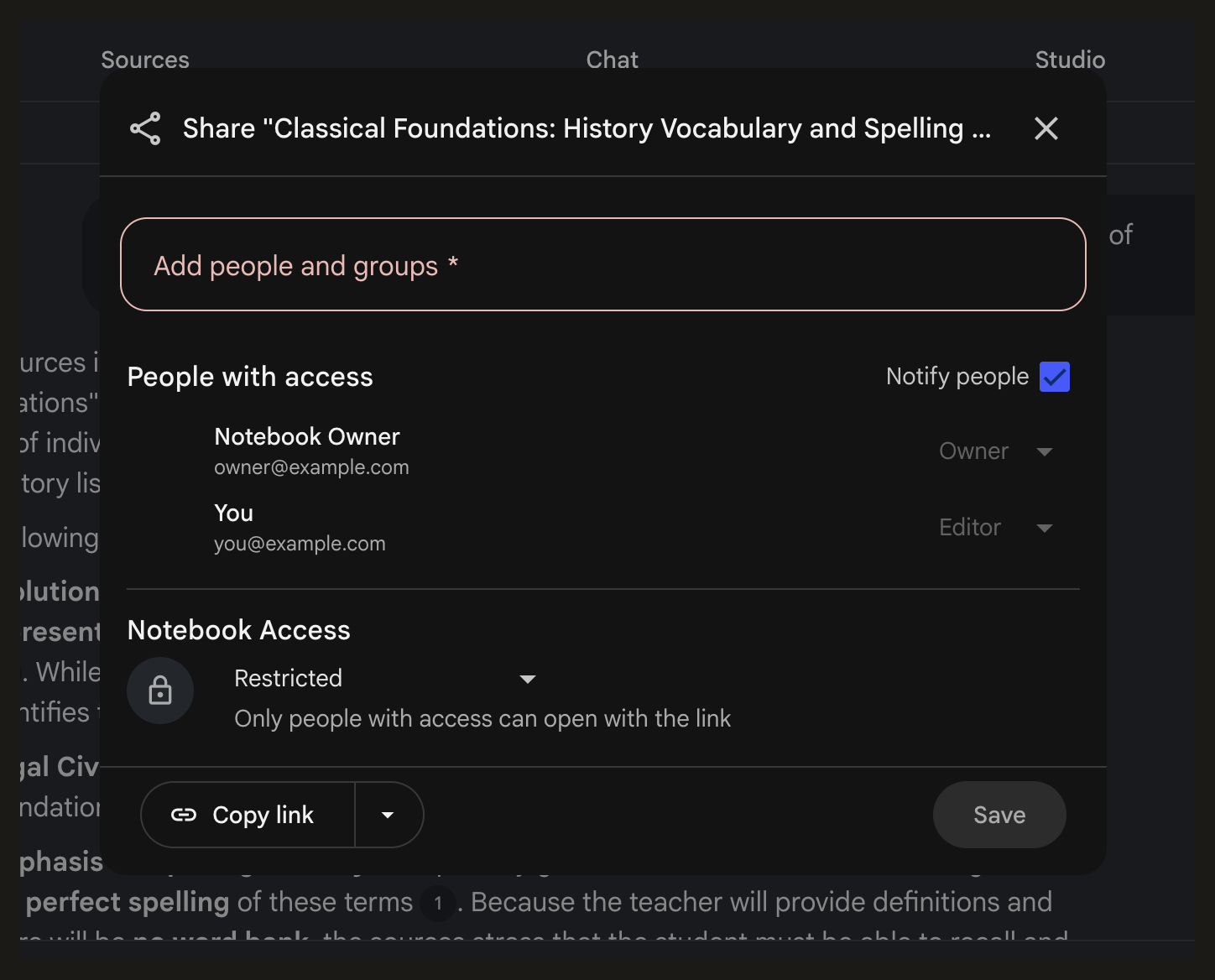
In NotebookLM, open the notebook you want to use, click Share, and copy its link. Then tell Claude:
Add this NotebookLM notebook and make it the active one: [paste your link]
Claude now knows which set of sources to pull from. You can add as many notebooks as you like and switch between them just by asking.
Ask Claude to actually use it
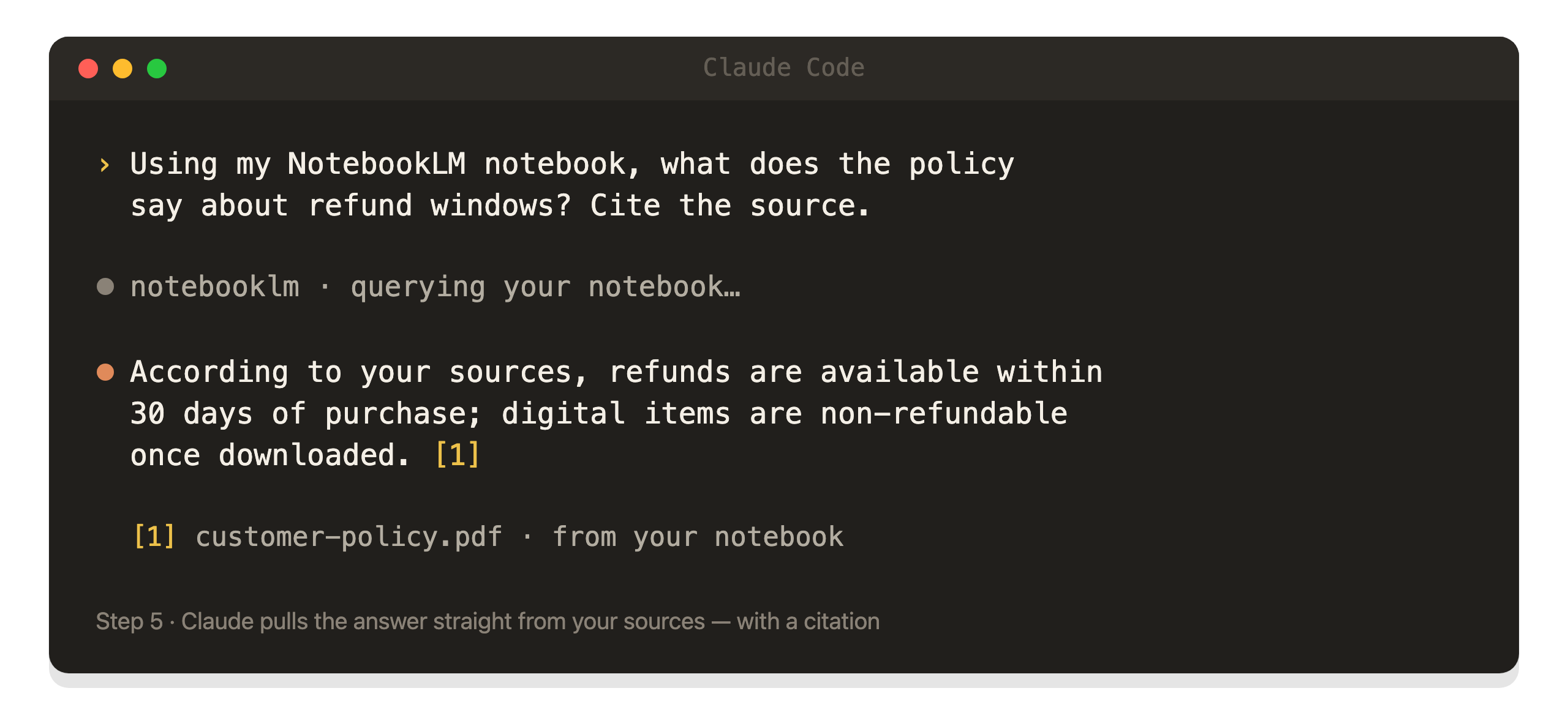
You're connected. Now the fun part — ask a real question and watch Claude answer from your sources:
Using my NotebookLM notebook, summarize the three main arguments across these papers and cite each one.
Claude quietly asks NotebookLM, NotebookLM reads your documents, and the answer comes back with citations pointing to your exact sources. No copy-pasting, no guessing, no made-up facts.
Give Claude a memory that actually lasts
Here's where this stops being a neat trick and becomes something you'll use every single day.
If you work in Claude Projects, open your project's settings and add one line to its instructions:
Before answering any strategic question, check my NotebookLM notebook first.
From that moment on, Claude quietly folds your own notes into every answer — automatically, without you asking each time. It just works in the background.
Then build the other half of the habit. After any conversation worth keeping, tell Claude:
Summarize this conversation and save it to my 'Second Brain' notebook in NotebookLM.
Over time, that notebook becomes a real long-term memory — every decision, idea, and insight in one place. Your next conversation doesn't start from zero: you say "check my notebook before you answer," and Claude picks up with the full context of everything that came before.
That's the difference between an assistant that forgets you every morning and one that genuinely knows your world.
Three ways people actually use this
1. Turn a pile of PDFs into answers you trust
Drop your research, reports, or contracts into a notebook and ask Claude questions about them. Because the answers are grounded in your documents and cited, you're not gambling on whether the AI made something up.
2. Give Claude your product's documentation
Load a tool's manual or your own internal docs into NotebookLM, and Claude stops guessing how something works — it looks it up. This is a favorite trick for anyone who works with software all day.
3. One sentence, a full audio summary
Ask Claude to "make an Audio Overview of this notebook," and NotebookLM generates a podcast-style summary you can listen to on a walk — all without leaving your conversation.
A few honest things to know
- It's community-built, not official. Google and Anthropic haven't endorsed it. Under the hood it works by quietly driving a real Chrome window as if it were you — clever, but worth knowing.
- The free tier has limits. NotebookLM's free plan caps you at roughly 50 questions a day — plenty for most people, but now you know where the ceiling is.
- Keep sensitive material out of the cloud. Only load documents you'd be comfortable storing online. Our guide on staying safe with sensitive information covers the simple habits that keep your data yours.

Where to take this next
Connecting tools like this is where AI stops being a chatbot and starts being an assistant that actually does things for you. It's also the exact skill that separates people who dabble from people who get real work done. If you want the guided version — getting genuinely fluent with Claude and building assistants of your own — that's what we teach, step by step, inside the club.
Marketing ideas to steal with this combo
- 01
Load your competitors' landing pages into a notebook, then have Claude write yours sharper.
- 02
Feed in a year of your best posts and get new ones in the exact same voice.
- 03
Turn your brand guidelines into a notebook so every caption comes out on-brand, automatically.
- 04
Drop all your reviews in and ask Claude for the exact words your customers use.
- 05
Keep a swipe file of ads you love and have Claude remix them for your product.
- 06
Save every campaign's results and let Claude spot what worked before the next launch.
- 07
Turn one webinar transcript into a week of posts, an email, and a blog.
- 08
Build a positioning notebook so Claude never drifts off-message.
- 09
Load your ideal-customer research and pressure-test every new offer against it.
- 10
Keep a "voice" notebook of your best writing so nothing you publish sounds like a robot.
Questions, answered
Do I have to pay for NotebookLM?
No. NotebookLM's free plan is enough to follow this whole guide. The free tier limits you to roughly 50 questions a day, which is more than most people use.
Is this an official Google or Anthropic integration?
No — it's a free connector built by the community. There's no official public NotebookLM connection yet, so this one works by automating a real Chrome browser in the background. It's reliable, but treat it as community software.
Won't this burn through my Claude usage quickly?
Actually the opposite — that's the whole point. NotebookLM does the heavy reading of your documents, and only a short, synthesized answer comes back to Claude. You get grounded answers while keeping Claude fast and inexpensive.
Can Claude create notebooks and audio summaries too?
Yes. Once connected, you can ask Claude to add new sources, create a notebook, or generate an Audio Overview — all in plain English, without opening NotebookLM yourself.
What if it stops working one day?
Nine times out of ten, just ask Claude to "set up my NotebookLM login" again — a browser update or an expired session is the usual cause, and re-logging in fixes it.
Reading is step one. Doing it is the club.
New skills and guides first, courses as they're released, and a community that answers when you get stuck. $29/month, cancel anytime.

AI changes every week. Stay current in 2 minutes.
Every Monday: what changed in ChatGPT, Claude and Gemini, why it matters, and one thing to try. Free.
Written by Ann Alalouf. Spotted something out of date? Tell us — we keep these current. Published Jul 6, 2026.