

On this page
- What is Google AI Studio?
- What you'll be able to do after this guide
- How to build a website with Google AI Studio (no code)
- 1Open the Build tab
- 2Describe exactly what you want
- 3Watch it build, then refine
- How to create a professional voiceover with Google AI Studio
- 1Open the speech tool
- 2Paste your script and pick a voice
- 3Direct the delivery, then download
- How to use the live AI assistant (with screen sharing)
- 1Open the live / Stream mode
- 2Turn on your mic and share your screen
- 3Just talk to it
- Why Google AI Studio is worth your time
- Questions, answered
Google AI Studio is a free Google tool where you can build a website, create professional voiceovers, and talk to a live AI that can actually see your screen — all in one place, with no coding and no cost. It was originally made for developers, but here's the truth: regular people and businesses can get enormous value out of it. And if you're not using it yet, you should start today.
What is Google AI Studio?
Google AI Studio (at aistudio.google.com) is a free web playground for Google's Gemini AI models. It was built for developers, but you do not need to write a single line of code to use the parts that matter most. Three of them are genuinely useful for everyday people and small businesses: building websites, creating voiceovers, and a live assistant that shares your screen.
For an individual, that means building a personal site, narrating your videos, or having a patient tutor on call. For a business, it means spinning up a landing page, producing professional narration for your content, and getting live help the moment you're stuck — without paying for three separate tools.
What you'll be able to do after this guide
- Build a brand site or landing page just by describing it — no code, no designer.
- Create professional voiceover for your videos, reels, and courses.
- Use a live AI assistant that sees your screen, talks back, and walks you through anything — even when you're stuck inside some other website.
How to build a website with Google AI Studio (no code)
You may have heard about building sites with tools like Lovable or Base44. What most people don't know is that you can do the same thing right inside Google AI Studio — and it's far easier than you'd imagine. All you need is to describe, specifically and clearly, what you want and how it should look.
Open the Build tab
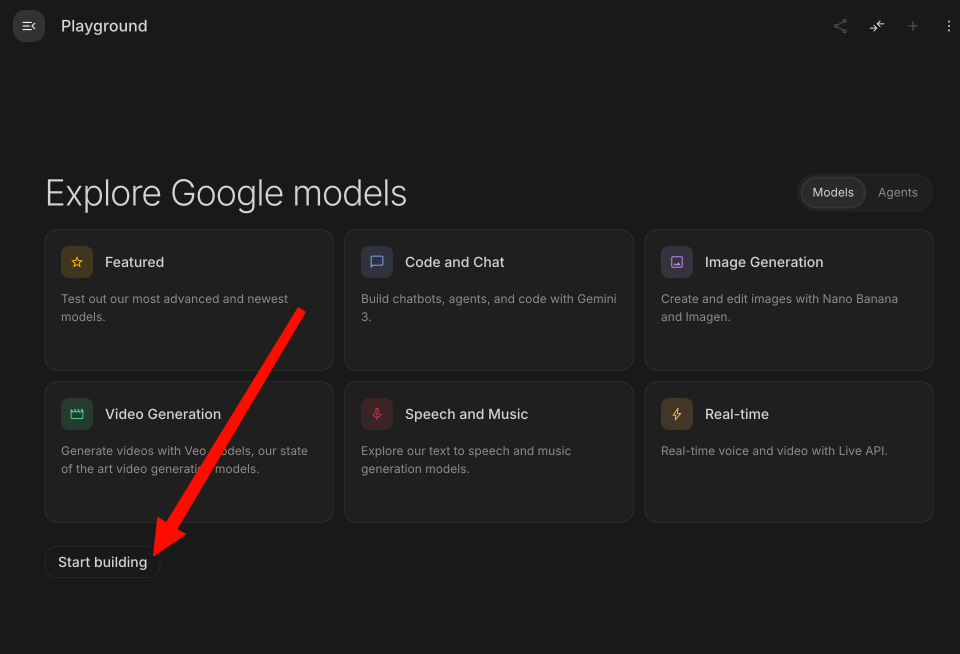
Go to aistudio.google.com. You'll land on the Playground, where all of Google's models live. Click Start building (or choose Build in the left menu) — this is where you turn a plain description into a working web page.
Describe exactly what you want
This is the step that decides everything. The website is only as good as the description you give it, so don't hold back — the more detail you pack in, the closer it lands on the first try. Spell out every one of these:
- Your business name and what you do — one clear line ("Bloom Yoga Studio, a calm neighborhood studio for beginners").
- Who it's for — your ideal customer, so the tone and wording fit them.
- The exact sections you want — for example a hero, about, services or menu, pricing, testimonials, an FAQ, and a contact section.
- Contact details that must appear — your address, phone number, and email. Write them out in full so they land on the page exactly right.
- Your brand look — your logo colors (give the hex codes if you have them, like #8AA88A), and a font you like (a clean sans-serif, or a specific one such as Poppins or Playfair Display).
- The vibe — warm and calm, bold and modern, elegant, playful. One or two words is plenty.
- Your main call to action — "Book a class," "Buy now," "Get a quote" — and where the button should lead.
Then hand it all over in a single prompt. Here's the shape of a great one:
Build a one-page landing page for “Bloom Yoga Studio,” a calm neighborhood studio in Austin, TX for beginners and busy professionals. Sections: a hero with a calming photo and a “Book a class” button, about, a weekly class schedule, prices, three testimonials, an FAQ, and a contact section. Contact details to show: 123 Oak Street, Austin, TX 78701 · (512) 555-0198 · hello@bloomyoga.com. Brand colors: soft sage green #8AA88A and warm cream #F5F1E8. Use a clean, rounded font like Poppins. Warm, calm, welcoming tone. Make the “Book a class” button scroll to the contact section.
Watch it build, then refine
Gemini generates a working site in the preview within seconds. Don't like something? Use the annotation feature to click any part of the page and describe the change in plain words — "make this button green," "add a pricing section," "use a different font." Keep tweaking until it's right, then publish it to a live link you can share.
How to create a professional voiceover with Google AI Studio
Google AI Studio has one of the best text-to-speech engines around, and it's free. It's perfect for narrating videos, reels, explainers, or a whole course — in a voice that actually sounds human.
Open the speech tool
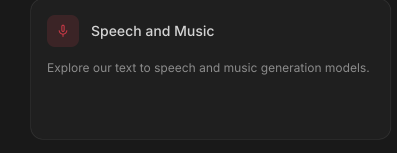
In Google AI Studio, open the audio / speech playground — the tool for turning text into natural-sounding speech.
Paste your script and pick a voice
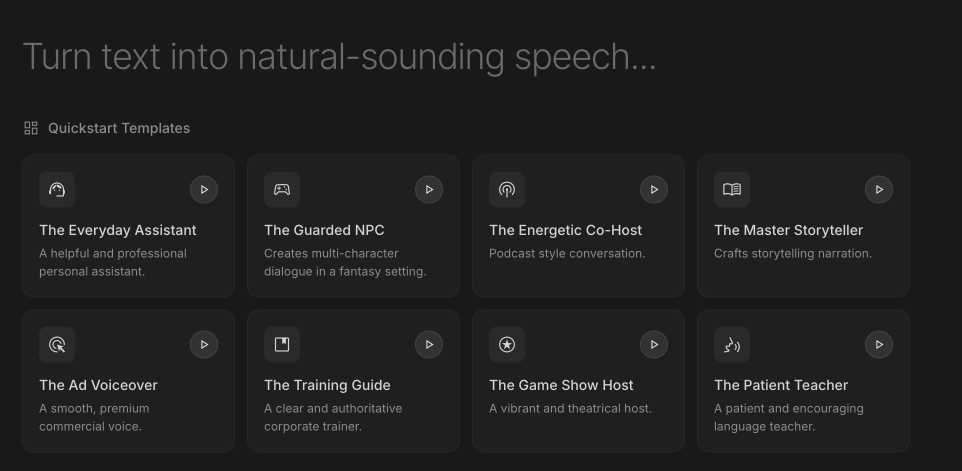
Drop in your script, then choose a voice. There are dozens of voices across 70+ languages, plus multi-speaker mode if you want a two-person dialogue. Pick the one that fits your brand.
Direct the delivery, then download
You can steer the tone, pace, and emotion just by describing it in plain language — calmer, more excited, slower here. Generate it, listen back, and download the audio file to drop straight into your video.
How to use the live AI assistant (with screen sharing)
This is the one that surprises everyone. Google AI Studio has a live mode where you talk to the AI in real time — out loud — and it can see your screen or camera. Share your screen, ask your question, and it answers and teaches you live, even when you're stuck inside some other website or app and have no idea what to do next.
Open the live / Stream mode
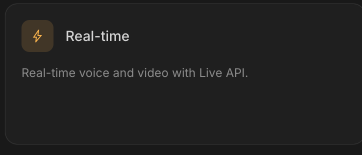
In Google AI Studio, open the Stream (live) option. This starts a real-time session where you can speak and be heard.
Just talk to it
Ask anything out loud: "What does this button do?", "Walk me through setting this up," "Why isn't this working?" It watches your screen and talks you through it step by step — and you can interrupt any time, just like a real conversation. It's a patient tutor that sees precisely what you see.
Why Google AI Studio is worth your time
It started life as a developer tool, but for regular people and small businesses it's a quiet goldmine: a website builder, a voiceover studio, and a live tutor — free, in a single browser tab. Most people are paying for three separate subscriptions to do what this one tool does for nothing. If you take one thing from this guide: go open it and try one of the three. You'll wonder why you waited.

Want the hand-holding version?
Inside the club we walk through tools like this one live, step by step, and help you turn them into real results for your work — whether you're a total beginner or already tinkering.
Questions, answered
Is Google AI Studio free?
Yes. Google AI Studio is completely free to use, with generous rate limits — no trial and no credit card required. You get access to Google's Gemini models right in your browser.
Do I need to know how to code to use Google AI Studio?
No. It was built for developers, but the most useful parts — building a website by describing it, creating voiceovers, and the live screen-sharing assistant — need zero code.
Can you really build a website with Google AI Studio?
Yes. In Build mode you describe the site you want in plain language, Gemini generates a working page, you refine it by clicking and describing changes, and you can publish it to a live link.
Can Google AI Studio create voiceovers?
Yes. Its text-to-speech tool turns any script into natural-sounding narration, with dozens of voices across 70+ languages, and you can download the audio for your videos.
What's the difference between Google AI Studio and the Gemini app?
The Gemini app is a simple consumer chat assistant. Google AI Studio is a fuller, free playground where you can build apps and websites, generate voiceovers, and run a live screen-sharing session — more power, still free.
Reading is step one. Doing it is the club.
New skills and guides first, courses as they're released, and a community that answers when you get stuck. $29/month, cancel anytime.

AI changes every week. Stay current in 2 minutes.
Every Monday: what changed in ChatGPT, Claude and Gemini, why it matters, and one thing to try. Free.
Written by Ann Alalouf. Spotted something out of date? Tell us — we keep these current. Published Jul 6, 2026.