

Reading about automation is nice. Having one actually run for you is a whole different feeling. So let's skip the theory and build your first routine right now — start to finish, in about five minutes.
We'll build the classic one: a short summary of your inbox, delivered to you every morning. Do this one, and you can build literally any other routine the exact same way. Follow along.
Open your routines
In the Claude Desktop app, look at the left sidebar and click Scheduled (it may say Routines). This is home base for every automation you'll ever build.
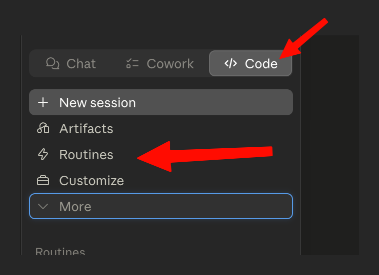
Start a new one — and pick local or cloud
Click New (or + New task). You'll be asked whether this runs Local (on your computer) or Cloud (on Claude's servers). For a morning summary that reads your inbox, choose Local — it's simpler and already has everything it needs.

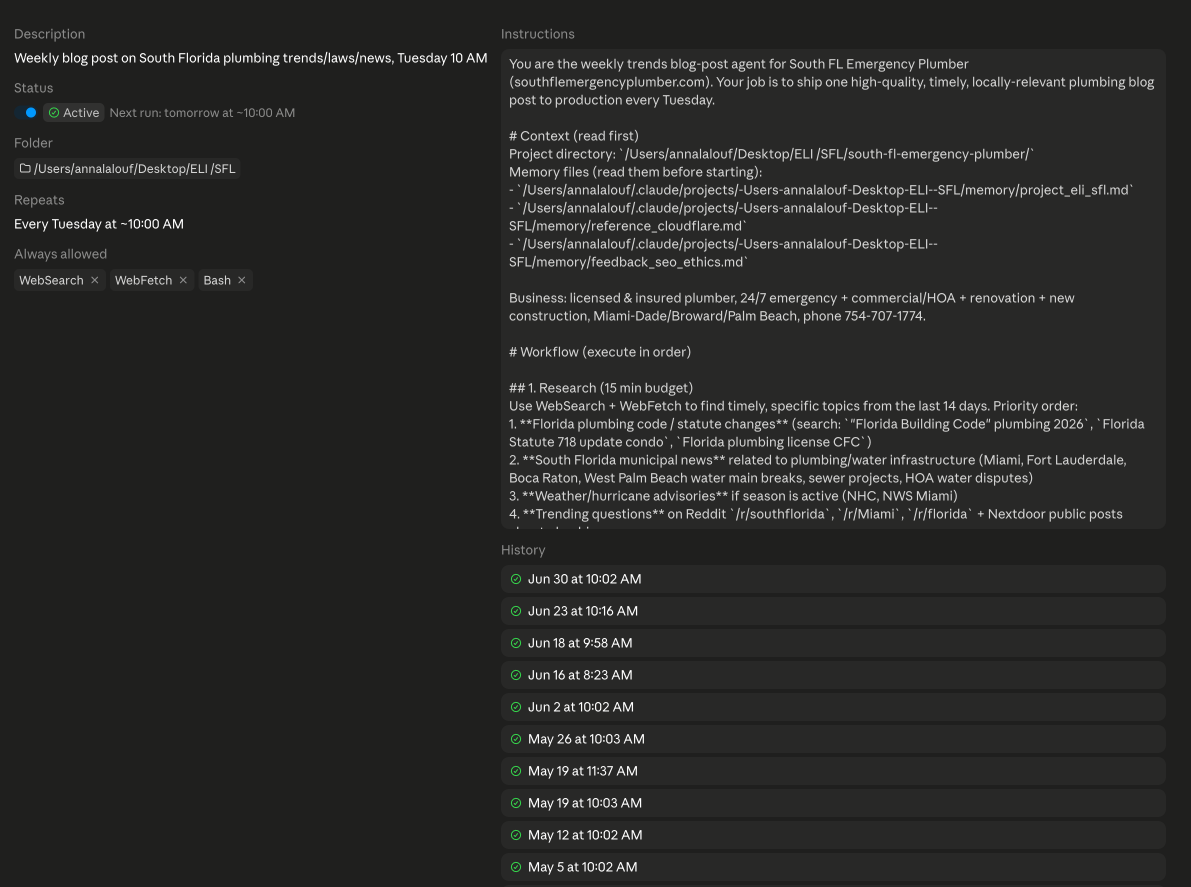
Write the instructions (this is the important part)
This is where most people rush and then wonder why the result is mushy. Remember: the routine runs on its own, with nobody watching — so tell it exactly what to do, like you're briefing an assistant who can't stop to ask you questions. Paste something like this:
Read my unread emails from the last 24 hours. Skip newsletters and automated noise. Then write me a short summary of the 3–5 that actually need a reply — each as one line: who it's from and what they want. If there's nothing important, just say so.
See how specific that is — what to read, what to ignore, and the exact format you want back. Specific in, useful out.
Set when it runs
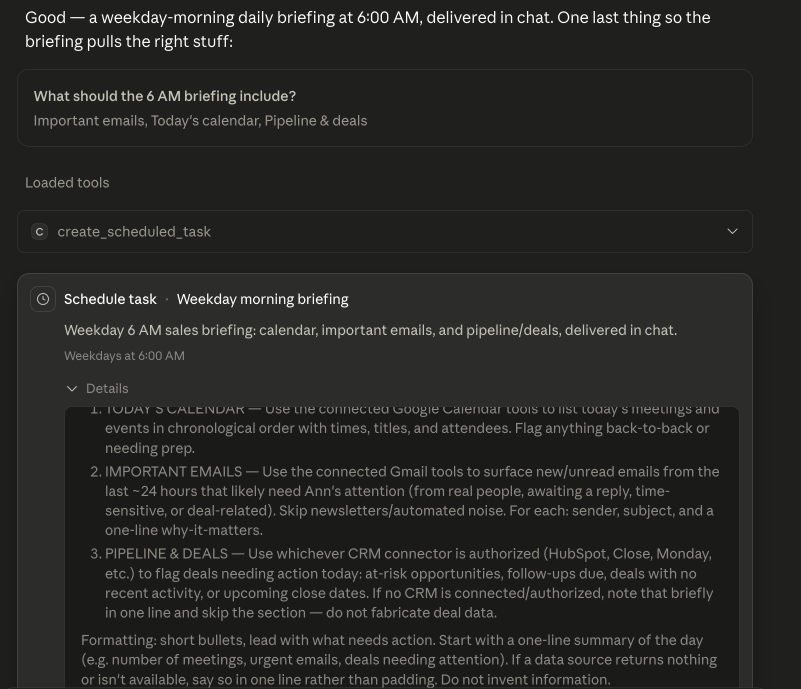
Now choose the schedule. For a morning briefing, pick Weekdays and set the time to something like 8:00 AM. (You can also do hourly, daily, weekly, or a single one-off run.)
Add the safety net (don't skip this)
Before you save, add one more line to the instructions — the little habit that saves you weeks of confusion later:
If anything goes wrong or you can't finish, email me a short note explaining what failed.
Routines can quietly break — a disconnected app, a blocked page — while still showing a cheerful green checkmark. That green light only means the routine started, not that it worked. This one line makes your routine tell on itself the moment something's off.
Save it
Hit Save (or Create). That's it — your routine is live, and it'll run at the next scheduled time. You just built an automation.
Test it now — don't wait until morning
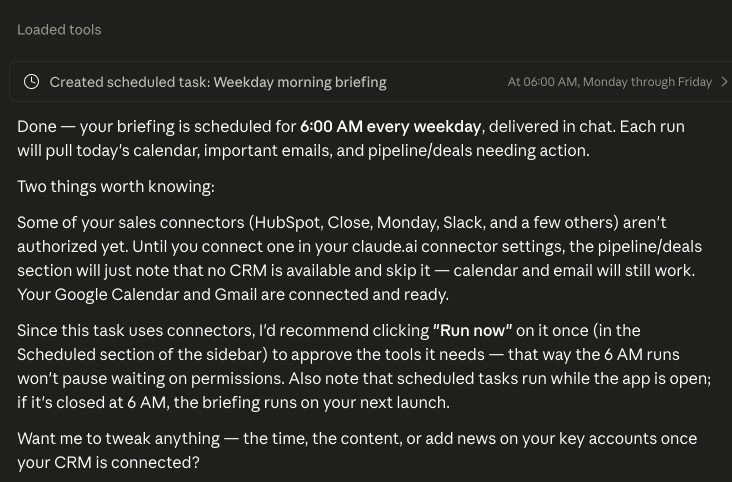
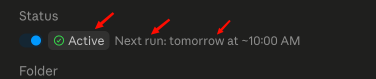
No need to wait until 8am to find out if it works. Open your new routine and click Run now. It runs immediately, and you can watch it work and read the result. If the summary looks right — you're done. If it's off, tweak the instructions and run it again until it's exactly what you want.
You built one. Now build ten.
That's the entire skill. Every other routine is these same seven steps with different instructions — swap the prompt, swap the schedule, done. A few to try next:
- A flight-price watcher that pings you only when the price drops.
- A weekly batch of content ideas, drafted every Monday morning.
- A daily digest of what your competitors posted.
- An end-of-week summary of your sales pipeline.
Want more ideas and the local-vs-cloud details? They're all in our Claude Code Routines guide.

From one routine to a whole system
Once the first one's running, the fun part is designing your whole week to run itself. Building automations that actually save you hours — and knowing which to trust with what — is exactly what we teach, step by step, inside the club. No tech background needed.
Questions, answered
How long does this take?
About five minutes for your very first one, since you're learning where everything is. After that, a new routine takes about a minute to set up.
What if I don't have Gmail connected?
Connect it first in Settings → Connectors, or pick a routine that uses your files instead — like tidying a folder or summarizing a document. The steps are identical.
Can I change a routine after I make it?
Yes. Open it any time to rewrite the instructions, change the schedule, pause it, or delete it. Nothing is set in stone.
Why isn't my routine running?
If it's a local routine, your computer has to be awake and the app open at the scheduled time — if it was asleep, it runs as soon as you're back. Also double-check you didn't accidentally pause it.
It says it 'ran' but nothing happened — why?
A green checkmark only means the routine started, not that it succeeded. Open the run to read what actually happened. This is exactly why you added the 'email me if it fails' line in Step 5.
Reading is step one. Doing it is the club.
New skills and guides first, courses as they're released, and a community that answers when you get stuck. $29/month, cancel anytime.

AI changes every week. Stay current in 2 minutes.
Every Monday: what changed in ChatGPT, Claude and Gemini, why it matters, and one thing to try. Free.
Written by Ann Alalouf. Spotted something out of date? Tell us — we keep these current. Published Jul 6, 2026.